
July 9, 2026
Remote Access Software in 2026: The Practical Architecture Guide for SaaS Buyers
Remote access software is not just a login tool. This guide helps SaaS buyers and small teams evaluate architecture, security, workflows, and rollout risk.
Remote access software looks simple until it becomes part of daily operations. Someone needs to fix a laptop, support a customer, inspect a remote device, or help a teammate who is stuck. The tool connects. The session starts. Everyone assumes the problem is solved.
Then the mess shows up later. Nobody knows who approved access. A support rep uses a shared admin account. A contractor still has an agent installed on a machine six months after the project ended. A customer says a file changed during a session, and the team has no recording, ticket link, or audit trail.
Teams think the problem is remote control. The real problem is controlled access to work context.
That changes the conversation. Remote access software is not just a utility for taking over a screen. In 2026, it is part of your support workflow, security model, device operations, customer trust, and productivity stack. The practical question is not which tool has the longest feature list. The practical question is which system lets the right person access the right environment, for the right reason, with the right evidence afterward.
Table of contents
- Why remote access software fails when it is treated like a tool
- Remote access software architecture in 2026
- Use cases that should shape your shortlist
- Security model before feature checklist
- Comparison: remote access, screen sharing, and device management
- Implementation workflow for small teams
- Operational workflows that make the software useful
- What breaks in practice
- Evaluation scorecard for SaaS buyers
- Product fit: how saasrow.com readers should think about the category
- Final decision framework for remote access software
Why remote access software fails when it is treated like a tool
The buyer sees a login screen
The mistake teams make is evaluating remote access software like a simple convenience product. They compare connection speed, device count, platform support, and price. Those matter, but they are not the whole system.
A buyer sees a login screen and asks whether the tool can connect to Windows, macOS, Linux, iOS, Android, or a browser. An operator asks a harder set of questions:
- Who is allowed to initiate access?
- Does the user need to approve the session?
- Can access happen when nobody is at the device?
- What happens when the employee leaves?
- Where does the session record live?
- Can support explain what was changed?
- Does the access path bypass other security controls?
If the tool answers only the first question, it may work for a demo and fail in production.
The operator sees state, trust, and support
Remote access creates temporary power. During a session, the support person may see files, browser tabs, customer data, admin consoles, terminal windows, or financial records. That is not the same as a video call.
A useful way to think about it is state transfer. Before the session, there is a problem state. During the session, someone makes changes. After the session, the business needs a reliable record of what changed, why it changed, and who accepted the result.
This is why remote access belongs in the same conversation as ticketing, identity, device management, support quality, and compliance. If those are disconnected, the team ends up relying on memory and chat history.
The practical question
The practical question is not whether you need remote access software. Many teams do. The real question is what level of access your workflow can safely support.
Practical rule: Do not buy remote access software until you can describe the three most common access scenarios in plain language.
For a small SaaS team, those scenarios might be internal laptop support, customer onboarding assistance, and emergency access to a shared production workstation. For an agency, they might be client machine troubleshooting, remote creative review, and contractor handoff. The tool should match those paths, not the other way around.
Remote access software architecture in 2026
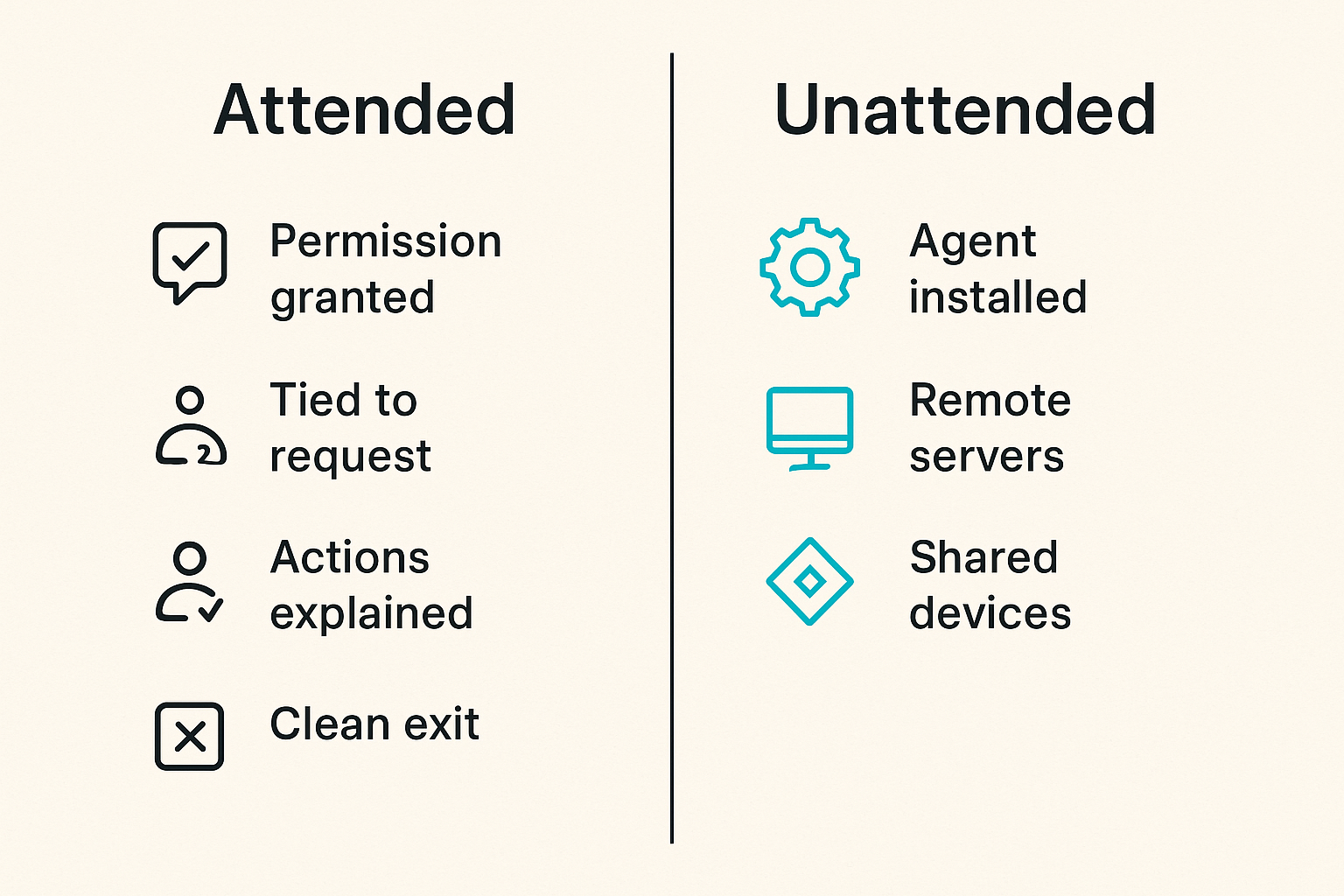
Remote access software in 2026 usually sits across three access patterns: attended access, unattended access, and browser based access. Vendors package these differently, but the operating questions are consistent.
Attended access
Attended access means a person is present and approves the session. This is common for customer support, employee troubleshooting, onboarding, and guided setup.
What works:
- The user grants permission with a visible prompt.
- The session is tied to a ticket, case, or request.
- The support person explains what they are doing.
- Sensitive actions require confirmation.
- The session ends cleanly and access expires.
What fails:
- Reps ask users to download random executables without a standard path.
- Sessions are started from personal accounts.
- Support bypasses identity checks because the customer sounds urgent.
- No one captures what happened after the call.
Attended access is usually easier to justify because the user is present. But it still needs controls. Presence is not proof of authorization.
Unattended access
Unattended access means an agent or connector is installed so an authorized user can connect without someone approving each session in real time. This is powerful and risky.
It is useful for:
- Managed endpoints
- Remote servers
- Lab machines
- Kiosks and point of sale systems
- Shared devices
- After-hours maintenance
The operating burden is higher because the access path persists. You need device inventory, owner assignment, expiration rules, group policies, logs, and offboarding. If you cannot keep an accurate list of installed agents, unattended access becomes a shadow network.
Practical rule: Treat unattended access like privileged infrastructure, not like a convenience feature.
A small team may only need unattended access for a narrow set of managed devices. If every laptop gets a permanent remote agent by default, ask why. Convenience is not an access policy.
Browser based access
Browser based access reduces installation friction. It can be useful for lightweight support, vendor access, and cross-platform work. The tradeoff is that browser sessions may have limits around performance, file transfer, keyboard control, multi-monitor support, or deep system permissions.
The main question is whether browser based access keeps the workflow inside a governed environment. If it avoids unmanaged downloads and ties sessions to identity, it may be better than a heavier client. If it encourages ad hoc links with no ownership, it creates the same problems in a cleaner package.
For teams comparing options from scratch, the broader remote access software workflow guide is a useful companion because it frames the category around ownership, support, integrations, and rollout rather than isolated features.
Use cases that should shape your shortlist
Internal IT support
Internal IT support is the cleanest use case because the business owns the users, devices, and policies. Even then, teams get into trouble when they treat every employee device the same.
Segment devices by access need:
- Executive devices with sensitive data
- Engineering devices with production credentials
- Finance devices with payroll or tax records
- Shared office machines
- Contractor laptops
- Personal devices used for work
Each group may require different controls. Finance devices may need stronger session logging. Engineering devices may require approval before terminal access. Contractor devices may need time-bound access only.
A similar workflow principle applies in other sensitive business software. For example, small teams evaluating tax tools need to think beyond the interface and into records, review gates, and ownership; that is the same reason our guide to TurboTax software for small business workflow treats tax preparation as an operating process, not just a form-filling app.
Customer support and onboarding
Customer support is where remote access software can improve productivity quickly, but it is also where trust can be damaged quickly.
Customers may not understand what the support person can see. They may leave sensitive tabs open. They may share credentials in a chat because they want the issue fixed. Good process protects both sides.
For customer support, prioritize:
- Consent prompts with clear language
- Session limits and automatic disconnects
- Masking or pausing controls for sensitive input
- Role based permissions for support tiers
- Ticket notes and session summaries
- Customer-visible confirmation of completion
Related reading from our network: teams selling digital products face a similar problem where the visible checkout is only part of the operating system, and selling digital products as a practical system explains why delivery, support, metrics, and follow-up matter after the first transaction.
Remote work and field operations
Remote work creates edge cases. People travel. Devices sit in offices nobody visits. Field staff use tablets, kiosks, or shared systems. A remote access tool may become the only practical way to keep work moving.
The mistake teams make is allowing every operational edge case to become a permanent exception. One emergency remote session becomes a shared password. One field device becomes ten unmanaged agents. One contractor access request becomes a standing permission nobody reviews.
If remote access supports field operations, build a simple operating register:
- Device name
- Device owner
- Physical location
- Access method
- Approved users
- Business reason
- Review date
- Decommission date
This does not need to be complicated. A spreadsheet is better than nothing if it is owned and reviewed.
Security model before feature checklist
Identity and permissions
Security starts with identity. If the remote access software has its own user directory disconnected from your identity provider, you now have another place where access can drift.
Look for support for:
- Single sign-on where appropriate
- Multi-factor authentication
- Role based access control
- Group based device assignment
- Just-in-time elevation
- Contractor expiration dates
- Admin separation from regular operators
Do not let every support person become a remote access administrator. Admin rights should be reserved for people managing the system, not everyone using it.
Practical rule: The person who can start a session should not automatically be the person who can change remote access policy.
Session controls and audit trails
Session controls are where the difference between a support tool and an operating system becomes obvious.
At minimum, evaluate whether the platform supports:
- User consent prompts
- Session recording or detailed logs
- File transfer controls
- Clipboard controls
- Command or terminal restrictions
- Screen blanking where appropriate
- Automatic timeout
- Watermarking or operator identification
- Post-session notes
Audit trails matter only if someone can use them. A log buried in an admin console nobody checks is better than nothing, but not by much. Ideally, session evidence should connect to tickets, devices, users, and business context.
Data handling and compliance boundaries
Remote access software may process session metadata, recordings, chat content, file transfers, device names, IP addresses, usernames, and diagnostic data. In some environments, that becomes a compliance issue.
Ask vendors direct questions:
- What data is captured by default?
- Where are recordings stored?
- Can recordings be disabled or scoped by policy?
- Who can view logs and recordings?
- How long is data retained?
- Can data be exported for review?
- What happens when an account is deleted?
For small teams, the goal is not to create enterprise bureaucracy. The goal is to avoid buying a tool that quietly creates a sensitive data store nobody owns.
Comparison: remote access, screen sharing, and device management
Where each category fits
These categories overlap, but they are not the same. Screen sharing helps people collaborate visually. Remote access allows someone to operate another environment. Device management governs devices over time.
| Category | Primary job | Typical user | Risk level | Best fit |
|---|---|---|---|---|
| Screen sharing | Show and discuss a screen | Any employee | Low to medium | Meetings, demos, reviews |
| Remote access software | Control or support another device | IT, support, operations | Medium to high | Troubleshooting, setup, maintenance |
| Device management | Enforce policy across endpoints | IT or security admin | High | Fleet control, patching, inventory |
| Help desk platform | Track requests and outcomes | Support or IT teams | Medium | Intake, assignment, documentation |
The distinction matters because buying the wrong category leads to awkward workarounds. A meeting tool with remote control may be fine for a quick walkthrough, but it may not provide device inventory, unattended access, or audit depth. A device management tool may be excellent for policies but clumsy for customer support.
When categories overlap
Overlap is not bad. It becomes bad when nobody knows which system is authoritative.
If a screen sharing tool allows remote control, decide whether that is acceptable for support. If a help desk tool launches remote sessions, decide whether the help desk owns the record. If device management can run scripts, decide whether remote access is still needed for human troubleshooting.
For a deeper adjacent comparison, our guide to screen sharing business software explains how collaboration tools should be evaluated by workflow, reliability, permissions, and rollout rather than meeting features alone.
Related reading from our network: remote collaboration teams often face the same boundary between the meeting and the workflow, and Zoom video chat for remote teams looks at how calls fit into design, development, and operations instead of standing alone.
The buying trap
The buying trap is choosing the tool that solves the most visible pain while ignoring the system around it.
If your pain is slow support, you may buy the fastest connection. If your pain is frustrated customers, you may buy the easiest invite flow. If your pain is IT backlog, you may buy unattended access everywhere.
Those choices can help. They can also create unmanaged power.
Practical rule: Every remote access feature should map to an owner, a permitted scenario, and an evidence trail.
If you cannot map a feature to those three things, you may not need it yet.
Implementation workflow for small teams
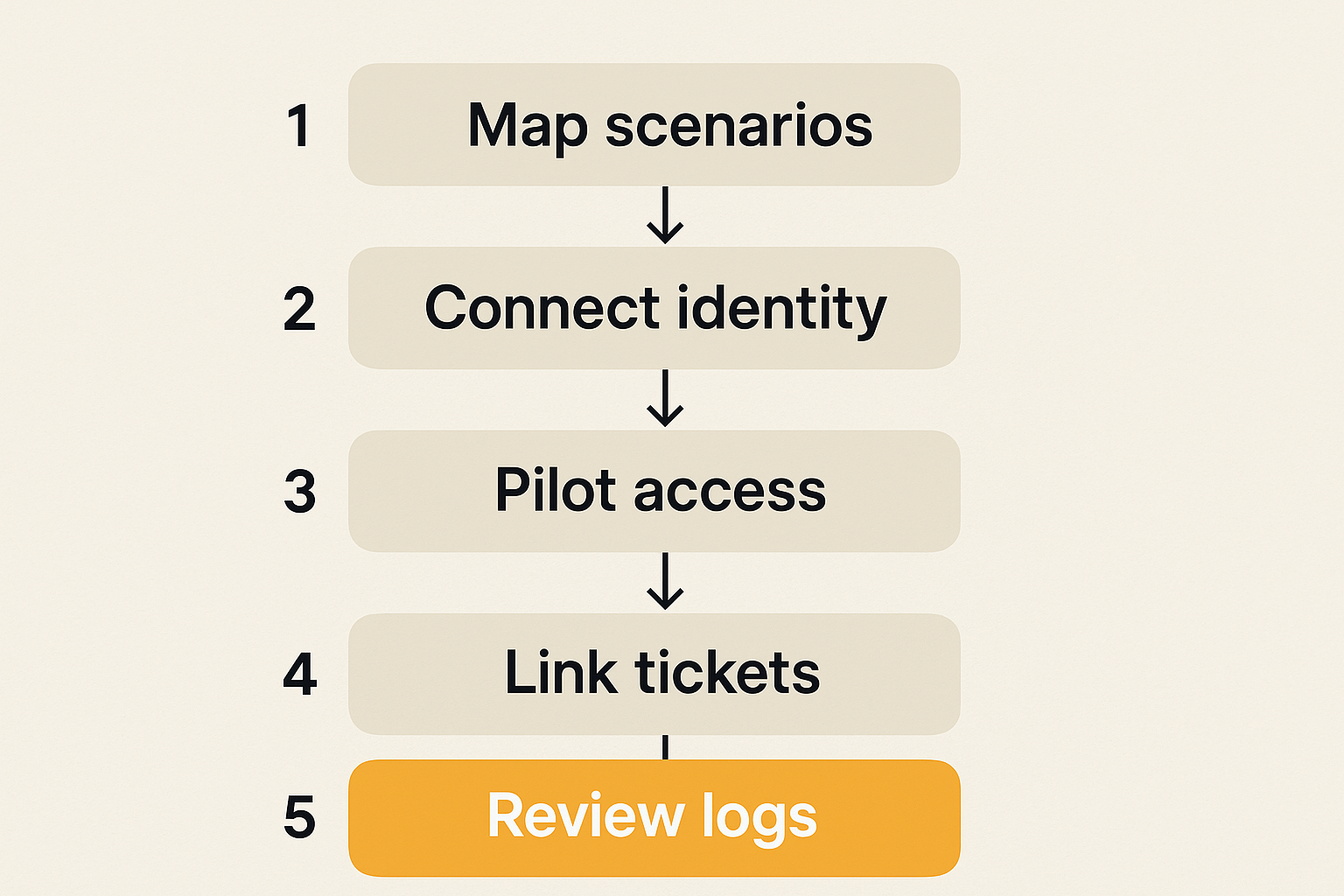
Map access scenarios
Start with the work, not the vendor. Write down the actual situations where remote access is needed.
A practical first pass:
- List the top five support or operations problems that require access.
- Mark each one as attended, unattended, or browser based.
- Identify whose device, account, or environment is involved.
- Decide whether the session touches sensitive data.
- Define what evidence must exist after the session.
- Assign a business owner for the scenario.
- Remove scenarios that are really training, documentation, or better product design problems.
That last point matters. Remote access can hide product friction. If support constantly needs to take over a customer account to complete setup, the product may need better onboarding, permissions, or documentation.
Assign owners and approval gates
Remote access needs ownership at two levels: system ownership and session ownership.
System ownership answers:
- Who administers the platform?
- Who approves new users?
- Who reviews permissions?
- Who owns vendor renewal?
- Who handles incidents?
Session ownership answers:
- Why did this session happen?
- Who requested it?
- Who approved it?
- What changed?
- Was the user satisfied?
A lightweight policy can be enough for a small team. For example:
remote_access_policy:
  owner: operations
  mfa_required: true
  unattended_access: approved_devices_only
  customer_sessions: consent_required
  recordings: required_for_admin_changes
  contractor_access: expires_after_30_days
  review_frequency: quarterly
The specific values matter less than the fact that someone has made the choices explicit.
Roll out in phases
Do not deploy remote access software everywhere on day one unless you already have mature endpoint operations.
A safer rollout:
- Pilot with internal IT or operations users.
- Connect the tool to identity and MFA.
- Define roles before inviting the full team.
- Test attended access on low-risk devices.
- Add unattended access only for named managed devices.
- Connect sessions to tickets or support records.
- Review logs after the first month.
- Remove unnecessary permissions before expanding.
What works is boring rollout discipline. What fails is giving the tool to everyone because the first demo was impressive.
Operational workflows that make the software useful
Ticketing and context
Remote access without context creates cleanup work. The session may fix the immediate issue, but the team cannot learn from it.
Tie remote sessions to a ticket, case, or task whenever possible. The record should include:
- User or customer
- Device or environment
- Problem statement
- Access method
- Operator
- Start and end time
- Actions taken
- Follow-up required
This turns remote access from a one-off intervention into operational knowledge. Patterns become visible. If the same setup bug causes twenty remote sessions, you have a product or documentation issue, not a support staffing issue.
Notifications, recordings, and evidence
Evidence should match risk. Not every session needs a full video recording, but higher-risk sessions need stronger records.
Use a tiered approach:
| Session type | Example | Evidence needed |
|---|---|---|
| Low risk attended | Helping a user find a setting | Ticket note and timestamp |
| Medium risk attended | Configuring billing or integrations | Ticket note, consent, activity log |
| High risk attended | Admin console changes | Recording or detailed audit trail |
| Unattended maintenance | Patching a shared system | Change record and device log |
| Emergency access | Restoring a critical workstation | Approval note and post-session review |
Related reading from our network: local groups using community software deal with a different domain but a similar operating problem, where asks, offers, trust, and follow-up need a system; community building software for local groups is a useful adjacent example.
Reconciliation after the session
What breaks in practice is not always the session itself. It is the lack of reconciliation afterward.
After meaningful remote access, the operator should answer:
- Was the original problem resolved?
- What setting, file, account, or device changed?
- Does the user need to take action?
- Is there a security follow-up?
- Should documentation be updated?
- Should the session be reviewed?
This is especially important when remote access is used as part of customer success. If the customer walks away happy but your team has no record, the next issue starts from zero.
What breaks in practice
Credential sprawl
Credential sprawl happens when remote access becomes a workaround for weak identity management.
Common examples:
- Shared support accounts
- Passwords pasted into chat
- Admin credentials stored in notes
- Contractors using employee accounts
- Former staff still listed as users
- Emergency credentials never rotated
The fix is not just telling people to behave better. The fix is making the secure path easier than the shortcut. Use SSO, MFA, role based permissions, and time-limited access where possible. If a support rep needs a password to help a customer every day, the workflow is broken.
Orphaned agents
Orphaned agents are remote access clients installed on devices that nobody actively manages. They are easy to create and easy to forget.
They show up on:
- Old employee laptops
- Contractor machines
- Test devices
- Customer systems after onboarding
- Shared office computers
- Decommissioned servers
Set a recurring review. Match installed agents against an approved device list. Remove anything without an owner. If the vendor provides inventory export, use it. If not, that is a buying consideration.
Support shortcuts
Support teams are under pressure to solve problems quickly. That pressure creates shortcuts.
The most common shortcuts are:
- Skipping consent language
- Using personal meeting links
- Starting sessions outside the ticket
- Leaving sessions open after the issue is fixed
- Making undocumented configuration changes
- Training new reps through shadow access with no policy
The goal is not to slow support down. The goal is to make the correct workflow the fastest workflow. Templates, default ticket fields, integrated launch links, and clear permissions do more than long policy documents.
Evaluation scorecard for SaaS buyers
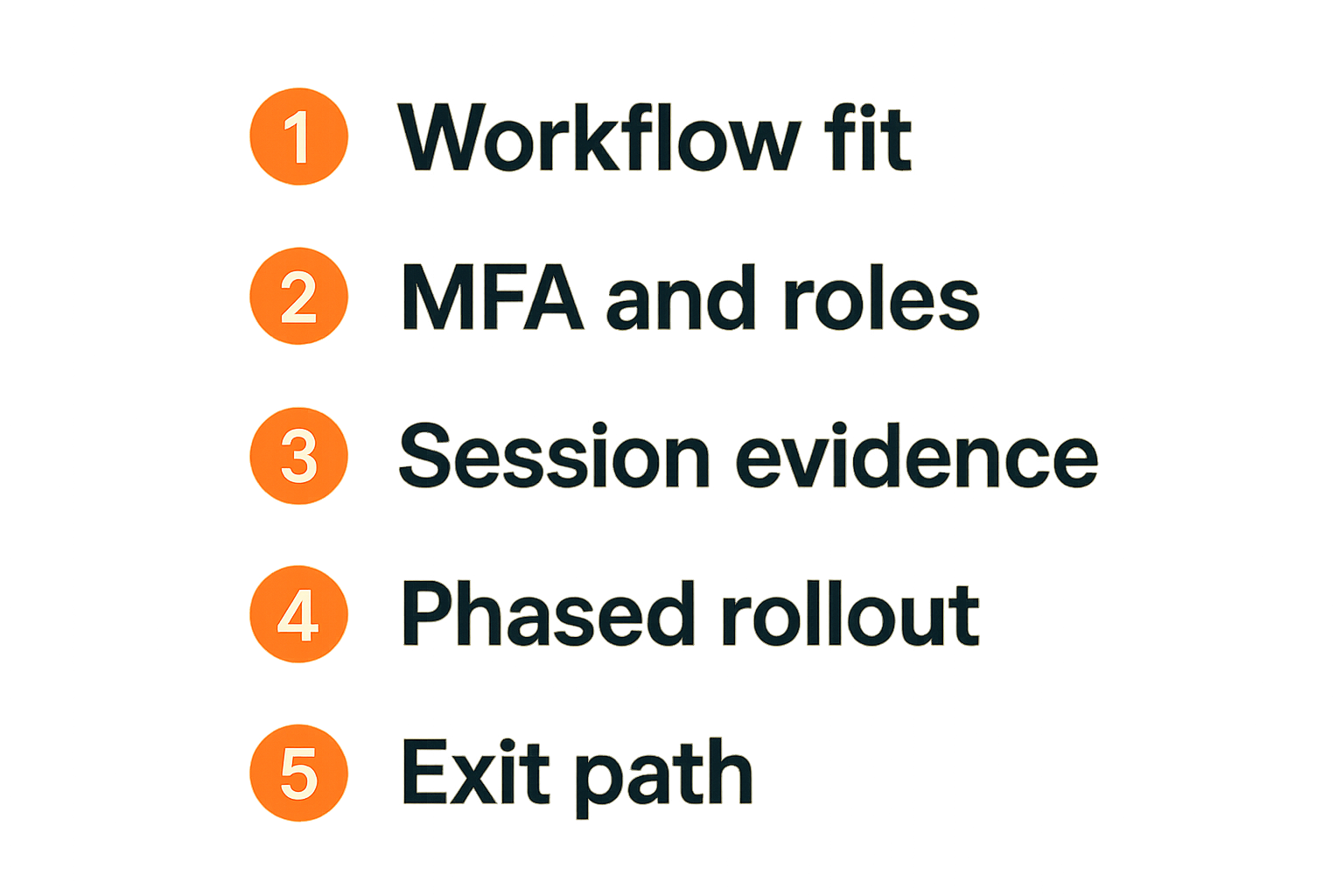
Table stakes
For most SaaS buyers and small business teams, table stakes include:
- Reliable cross-platform connections
- MFA support
- Role based permissions
- Consent prompts
- Session logging
- Basic file transfer controls
- Device grouping
- Admin reporting
- Clear pricing
- Responsive support
If a vendor cannot explain these clearly, pause. Remote access software is too sensitive for vague answers.
Differentiators
Differentiators depend on your workflow. A feature that matters deeply to one team may be irrelevant to another.
Useful differentiators include:
- Deep help desk integration
- Browser-only support sessions
- Strong unattended device inventory
- Granular clipboard and file policies
- Session recording controls
- Just-in-time access
- API access for automation
- Bulk deployment options
- Customer-branded support portals
- Strong reporting by team, device, or customer
The mistake teams make is paying for advanced controls they never operationalize. If you buy session recording but nobody reviews recordings, you bought storage. If you buy API access but have no automation owner, you bought future intent.
Pricing and vendor risk
Pricing can be per user, per technician, per device, per endpoint, per concurrent session, or bundled into a broader platform. Compare pricing against your access scenarios, not just headcount.
Ask:
- Do you pay for every employee or only operators?
- Are unattended devices priced separately?
- Are recordings included?
- Are integrations included?
- What happens when contractors need temporary access?
- Can usage spike during an incident?
- Is there a minimum contract?
Vendor risk also matters. Remote access tools sit in a sensitive part of your workflow. Evaluate support responsiveness, admin transparency, export options, security documentation, roadmap stability, and how easily you can leave.
Product fit: how saasrow.com readers should think about the category
Compare workflow, not slogans
saasrow.com is built for readers who want practical articles, guides, and insights about software and productivity. For remote access software, that means comparing tools by how they behave inside real work, not by homepage promises.
A vendor might say the tool is fast, secure, simple, or built for modern teams. Fine. Translate that into operating questions:
- Fast for which network conditions?
- Secure under which identity model?
- Simple for admins or end users?
- Modern compared with what existing workflow?
- Built for support, IT, customer success, or all three?
That changes the conversation from preference to fit.
Build a reusable buying checklist
A reusable checklist keeps the evaluation grounded. Use the same structure across vendors:
| Area | Question | Pass signal |
|---|---|---|
| Workflow | Does it support our top access scenarios? | Clear mapping to attended or unattended use |
| Security | Can permissions be scoped? | Roles, MFA, audit logs, admin separation |
| Operations | Can sessions connect to tickets? | Native integration or reliable process |
| Evidence | Can we prove what happened? | Logs, notes, recordings, exports |
| Rollout | Can we deploy gradually? | Groups, policies, pilot support |
| Exit | Can we remove agents and export data? | Inventory, exports, offboarding path |
This checklist is intentionally simple. The point is to force tradeoffs into the open before the team commits.
Keep the system reviewable
A remote access system should be reviewable by someone who was not in the original buying meeting. If a new operations lead joins, they should be able to understand who has access, which devices are connected, which sessions occurred, and why the tool exists.
Reviewability is a sign of operational maturity. It also prevents software decay. Many SaaS tools start clean and become messy because nobody owns the boring middle: permissions, renewals, exports, documentation, and offboarding.
Final decision framework for remote access software
Choose the least powerful system that works
The best remote access software is not always the most powerful platform. It is the least powerful system that safely supports your real workflows.
If attended browser sessions solve your support problem, do not rush into broad unattended access. If a help desk integration gives you enough evidence, do not create a parallel logging process. If only two people need remote admin capability, do not license and permission the whole team.
Power creates responsibility. Buy only the responsibility you are ready to operate.
Make the operating model explicit
Before signing, write down the operating model in one page:
- Primary use cases
- Approved users
- Approved devices
- Access types allowed
- Consent requirements
- Evidence requirements
- Review cadence
- Offboarding process
- System owner
If the team cannot agree on this, the purchase is premature. The software will not resolve the policy disagreement. It will just make the disagreement executable.
Closing thought
Remote access software can save hours, reduce support friction, and keep distributed teams moving. It can also become a quiet access layer nobody fully understands.
The difference is architecture. Treat remote access software as part of your workflow, security model, and support operations. Define ownership. Capture evidence. Review access. Remove what you no longer need.
That is how the tool stays useful after the demo.
Try saasrow.com
saasrow.com publishes practical articles, guides, and insights about software and productivity for teams that want to choose tools wisely. If you are comparing remote access software or adjacent SaaS categories, Try saasrow.com.